Clicker keypads, essential presentation tools, offer wireless control of on-screen content. They simplify presentations, allowing presenters freedom of movement and engagement.
These devices, often used with software like PowerPoint and Keynote, enhance delivery and audience interaction. Understanding their features is key to effective use.
What is a Clicker Keypad?
A clicker keypad, also known as a presentation remote, is a handheld electronic device used to remotely control computer presentations. It typically connects wirelessly via Bluetooth or a 2.4GHz RF receiver to a computer or projector. These compact devices empower presenters to navigate slides, control volume, and even utilize a laser pointer—all without being tethered to their computer.
Essentially, it’s a convenient tool for delivering dynamic and engaging presentations. Modern clicker keypads often include additional features like timer functionality and customizable button assignments, enhancing control and streamlining the presentation process for a professional experience.
Common Uses of Clicker Keypads
Clicker keypads find widespread application in diverse presentation scenarios. Educators frequently employ them during lectures to seamlessly advance slides and maintain audience focus. Business professionals utilize them for sales pitches, boardroom presentations, and conference talks, fostering a polished and interactive delivery.
Beyond formal settings, they’re valuable for workshops, seminars, and even home entertainment, like slideshows. The ability to move freely while presenting, coupled with features like laser pointers, significantly enhances engagement and allows presenters to connect more effectively with their audience, improving overall communication.

Understanding the Components
Keypads consist of buttons for slide control, indicator lights displaying connection status, and a power source—typically batteries. Familiarizing yourself with these parts is crucial.
Keypad Buttons and Their Functions
The primary buttons advance to the next or previous slide, offering seamless presentation navigation. Many keypads include a dedicated button to blank or freeze the current screen, useful for focusing audience attention.
A distinct button often activates a built-in laser pointer, ideal for highlighting specific details on the screen during your presentation. Some advanced models feature volume control buttons, allowing adjustment of audio levels without interrupting the flow.
Additionally, certain keypads may have customizable buttons for specific functions within presentation software, enhancing control and efficiency.
Indicator Lights and What They Mean
Indicator lights provide crucial feedback on the keypad’s status. A solid light typically signifies the device is powered on and connected to the receiving device. A blinking light often indicates it’s attempting to pair or is in pairing mode.
A rapidly blinking light, or a light turning off completely, usually signals a low battery level, requiring immediate replacement. Some keypads utilize different colored lights – green for connected, red for low battery, and blue for pairing.
Consult your specific model’s documentation for precise interpretations of light patterns.
Power Source and Battery Information
Clicker keypads primarily rely on battery power for operation, commonly utilizing AAA or AA batteries. Battery life varies depending on usage frequency and model. To maximize longevity, remove batteries when the keypad is stored for extended periods.
Always use high-quality batteries from reputable brands to ensure consistent performance and prevent potential leakage. Avoid mixing old and new batteries, or different battery types.
Refer to your device’s manual for specific battery requirements and replacement instructions.
Setting Up Your Clicker Keypad
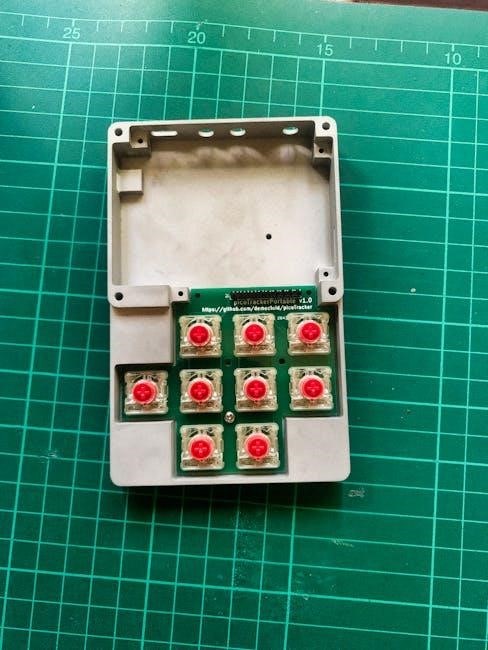
Initial setup involves installing batteries and pairing the keypad with your computer or presentation device. Follow the device-specific instructions carefully for optimal connectivity.
Installing Batteries
Battery installation is the first step to powering your clicker keypad. Typically, these devices require AAA or AA batteries, depending on the model. Locate the battery compartment, usually on the underside or back of the device, and gently slide open the cover.
Insert the batteries according to the polarity markings (+ and -) inside the compartment. Ensure they are securely seated. Replace the battery cover, making sure it clicks into place. Incorrect battery installation can prevent the keypad from functioning correctly. Always use fresh batteries for optimal performance and longevity.
Pairing with a Device (General Instructions)
Pairing establishes a wireless connection between your clicker and the receiving device (computer, projector). First, ensure the device is on and Bluetooth is enabled, if applicable. Activate pairing mode on the clicker – often by pressing a connect button, usually located on the back or underside.
On your device, navigate to Bluetooth settings and scan for available devices; Your clicker should appear in the list. Select it to initiate the pairing process. A successful connection is usually indicated by a light on the clicker or a confirmation message on the screen.
Specific Pairing Instructions for Different Devices (e.g., PowerPoint, Keynote)
PowerPoint: Open PowerPoint, go to the ‘Slide Show’ tab, and select ‘Set Up Slide Show’. Ensure ‘Presenter view’ is checked. The clicker should pair automatically via Bluetooth if previously connected. If not, follow general pairing steps.
Keynote: Launch Keynote, enter presentation mode, and navigate to ‘Present Settings’. Confirm Bluetooth is enabled. Keynote typically detects the clicker automatically. If issues arise, revisit the general pairing instructions. Some clickers may require dedicated software installation for optimal Keynote functionality.

Using the Clicker Keypad
Effortlessly navigate presentations with simple button presses! Advance slides, adjust volume, and utilize the laser pointer for focused audience engagement during your delivery.
Basic Navigation: Advancing Slides
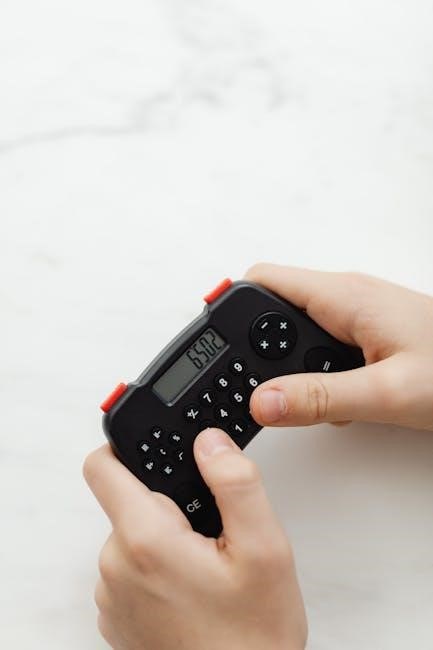
The primary function of most clicker keypads is to advance presentation slides. Typically, a large button prominently displayed on the device serves this purpose. A single press of this button will move the presentation forward to the next slide in the sequence.
Some keypads also feature up and down arrow buttons, allowing you to navigate backward or forward multiple slides at a time. Experiment with these buttons to understand their responsiveness and control. Ensure the receiver is properly connected to your computer for seamless slide advancement. Consistent clicks ensure a smooth presentation flow.
Controlling Volume
Many clicker keypads incorporate volume control functionality, enhancing presentation versatility. Dedicated buttons, often marked with plus (+) and minus (-) symbols, allow you to adjust the audio level of your presentation directly. These controls operate independently of your computer’s volume settings, providing convenient on-the-fly adjustments.
Ensure your presentation software supports volume control via the clicker. Test the volume buttons before your presentation to confirm functionality. Muting options may also be available, offering quick silence when needed. Proper volume control ensures optimal audience engagement.
Using the Laser Pointer
Most clicker keypads feature a built-in laser pointer, a valuable tool for highlighting specific elements on your presentation slides. A dedicated button activates the laser, allowing you to draw attention to key data, images, or text. Always be mindful of laser safety – avoid pointing it directly at eyes or reflective surfaces.
Practice using the laser pointer to ensure smooth and accurate pointing during your presentation. Some keypads offer varying laser brightness levels. Test the pointer’s visibility in the presentation environment to maximize its effectiveness and audience comprehension.
Screen Blanking/Freezing Functionality
Many clicker keypads include a screen blanking or freezing function, offering presenters valuable control during a presentation. This feature temporarily blacks out the screen, useful for redirecting audience focus back to the speaker or pausing for questions. Alternatively, it can freeze the current slide, preventing accidental advancement.
Typically activated by a dedicated button, this functionality provides a discreet way to manage the presentation flow. Familiarize yourself with the specific key combination or button for your model to utilize this feature effectively and maintain a polished presentation style.
Troubleshooting Common Issues
Addressing connectivity, responsiveness, battery, and interference problems ensures a smooth presentation experience. These sections offer solutions for typical clicker keypad malfunctions.
Keypad Not Connecting
If your clicker keypad fails to connect, begin by verifying the batteries are fresh and correctly installed. Ensure the receiver (USB dongle) is securely plugged into your computer. Next, attempt re-pairing the devices, following the specific instructions for your operating system and presentation software.
Check for potential interference from other wireless devices, like Bluetooth speakers or routers, which can disrupt the signal. Restarting your computer can often resolve temporary software glitches. Confirm the receiver is recognized within your computer’s device manager. Finally, consult the manufacturer’s website for specific troubleshooting steps related to your model.
Buttons Not Responding
When buttons on your clicker keypad become unresponsive, the first step is to replace the batteries, even if the indicator light suggests sufficient power. Sometimes, a low battery can cause intermittent functionality. Ensure there’s no physical obstruction preventing button presses. Try re-pairing the keypad with your computer, as a disrupted connection can lead to this issue.
Check your presentation software settings to confirm the clicker is recognized as an input device. Restarting the software or your computer can often resolve software-related problems. If the issue persists, consult the manufacturer’s support resources for model-specific guidance.
Low Battery Issues
A common problem with clicker keypads is diminished battery life, leading to reduced range or complete failure. Most keypads feature an indicator light to signal low battery levels; replace batteries promptly when this occurs. Use only the recommended battery type, as incorrect batteries can damage the device. Consider carrying spare batteries, especially for lengthy presentations.
Battery life varies depending on usage frequency and battery quality. Alkaline batteries generally offer longer performance than cheaper alternatives. If the keypad continues to exhibit low battery warnings after replacement, inspect the battery compartment for corrosion or damage.
Interference Problems
Wireless clicker keypads can sometimes experience interference, causing intermittent connection issues or unresponsive buttons. Common sources of interference include other wireless devices, Bluetooth signals, and even certain types of lighting. Try repositioning the receiver closer to the keypad, or moving away from potential interference sources.
Ensure the receiver isn’t obstructed by metal objects. If problems persist, attempt re-pairing the keypad with the receiving device. Updating the receiver’s drivers (if applicable) can also resolve compatibility issues. Minimizing wireless clutter in the presentation area often improves performance.
Advanced Features
Many clicker keypads offer timer functions, multiple device pairing capabilities, and customizable button assignments for enhanced presentation control and personalized workflows.
Timer Functionality
Many advanced clicker keypads incorporate a built-in timer function, a valuable asset for presentations with strict time constraints. This feature allows presenters to monitor their pacing effectively, ensuring they cover all essential material within the allotted timeframe.
Typically, the timer can be started and stopped with a dedicated button on the keypad, displaying elapsed time on the presentation screen. Some models offer customizable alerts, such as visual or vibrational cues, to signal approaching time limits. Utilizing the timer promotes concise delivery and helps maintain audience engagement by preventing presentations from running excessively long. It’s a powerful tool for professional presentations.
Multiple Device Pairing
Certain sophisticated clicker keypads support pairing with multiple devices, offering enhanced versatility for presenters who frequently switch between computers or presentation setups. This functionality eliminates the need for repetitive pairing procedures each time a different device is used.
The pairing process usually involves a dedicated button or a sequence of button presses to cycle through pre-configured device profiles. Some models allow for storing several device connections, streamlining workflow and saving valuable presentation time. This feature is particularly beneficial for individuals who present across various platforms or locations, ensuring seamless transitions.
Customizable Button Assignments (if applicable)
Advanced clicker keypads may offer customizable button assignments, empowering users to tailor the device’s functionality to their specific presentation needs. This feature allows remapping of buttons to perform actions beyond standard slide advancement, volume control, or laser pointer activation.
Through dedicated software or onboard controls, presenters can assign buttons to trigger specific program functions, initiate media playback, or even execute custom macros. This level of personalization enhances workflow efficiency and provides greater control during presentations, adapting the device to individual preferences and presentation styles.

Maintaining Your Clicker Keypad
Regular cleaning with a soft, dry cloth preserves functionality. Store the keypad in a safe, dry location, and always replace batteries promptly for optimal performance.
Cleaning Instructions
To ensure the longevity and proper functioning of your clicker keypad, regular cleaning is essential. Always begin by completely powering off the device and removing the batteries to prevent accidental activation. Use a soft, lint-free cloth, slightly dampened with water if necessary, to gently wipe the exterior surfaces.
Avoid using harsh chemicals, abrasive cleaners, or solvents, as these can damage the plastic casing or internal components. For stubborn dirt or grime, a mild soap solution can be used, but ensure the cloth is only damp, not wet, and wipe thoroughly with a dry cloth afterward. Pay particular attention to the buttons, ensuring no debris is lodged beneath them.
Never immerse the keypad in water or any other liquid.
Storage Recommendations
Proper storage significantly extends the life of your clicker keypad. When not in use, always remove the batteries to prevent corrosion and potential damage from leakage. Store the keypad in a cool, dry place, away from direct sunlight, extreme temperatures, and humidity. A protective case or pouch is highly recommended to shield it from dust, scratches, and accidental impacts.
Avoid storing the keypad with heavy objects that could apply pressure or damage the buttons. Keep it separate from metallic objects that might cause interference. Regularly check the storage location to ensure it remains clean and dry, contributing to the keypad’s continued reliability.
Battery Replacement Guidelines
Replacing batteries is straightforward, but crucial for consistent performance. Always use the correct battery type as specified in the technical specifications – typically AAA or AA. Open the battery compartment, usually located on the back or underside of the keypad. Observe the polarity markings (+ and -) inside the compartment and insert new batteries accordingly.
Ensure batteries are securely seated. Dispose of old batteries responsibly, following local regulations for battery recycling. If the keypad doesn’t function after replacement, double-check battery orientation and compartment closure. Regular battery checks prevent interruptions during presentations.
Safety Precautions
Prioritize safety when using your clicker. Avoid pointing the laser at eyes, handle batteries carefully, and prevent device exposure to extreme temperatures or moisture.
Laser Pointer Safety
Exercise extreme caution when utilizing the integrated laser pointer feature. Directing the laser beam into someone’s eyes, even briefly, can cause serious and potentially permanent vision damage. Never point the laser at people, animals, or reflective surfaces like mirrors or windows.
Always be mindful of your surroundings and ensure the laser beam is directed towards the presentation screen only. Supervise children closely if they are using the clicker with a laser pointer. Avoid prolonged exposure to the laser beam, even for yourself. If accidental eye exposure occurs, seek immediate medical attention.
Battery Safety
Always use the specified battery type as indicated in the technical specifications. Mixing old and new batteries, or different battery types, can lead to leakage or device malfunction. When installing batteries, ensure correct polarity (+ and -) alignment. Do not attempt to recharge non-rechargeable batteries.
Dispose of used batteries responsibly, following local regulations for battery recycling. Keep batteries away from heat, fire, and direct sunlight. If battery leakage occurs, avoid contact with skin and eyes; rinse thoroughly with water and seek medical attention if needed.
General Usage Safety
Handle the clicker keypad with care, avoiding drops or impacts that could damage internal components. Do not disassemble the device; this will void the warranty and may pose a safety risk. Keep the keypad dry and away from liquids. Clean the exterior with a soft, dry cloth only – avoid abrasive cleaners.
Ensure a clear line of sight between the keypad and the receiver for optimal performance. Do not obstruct the receiver with objects that may interfere with the signal. Store the keypad in a safe place when not in use, protecting it from extreme temperatures.
Technical Specifications
Key specifications include a wireless range up to 65 feet, operating on 2.4 GHz frequency, and broad compatibility with Windows and macOS systems.
Wireless Range
The typical wireless range for most clicker keypads extends up to 65 feet (approximately 20 meters) in open space. However, this range can be significantly affected by environmental factors and potential interference. Obstructions like walls, furniture, and even people can reduce the effective distance.
Devices emitting radio frequencies, such as Wi-Fi routers and Bluetooth devices, may also cause interference, leading to intermittent connectivity or a shorter operational range. To maximize the wireless range, ensure a clear line of sight between the keypad and the receiver, and minimize potential sources of interference in the immediate vicinity.
Operating Frequency
Most clicker keypads operate on the 2.4 GHz radio frequency band. This frequency is widely used for wireless communication, offering a balance between range and reliability. However, because it’s a common band, potential interference from other 2.4 GHz devices – like Wi-Fi routers, Bluetooth headphones, and microwave ovens – can sometimes occur.
Manufacturers often employ frequency-hopping spread spectrum (FHSS) technology to mitigate interference by rapidly switching between different frequencies within the 2.4 GHz band, ensuring a stable connection during presentations. Understanding this frequency is crucial for troubleshooting connectivity issues.
Supported Operating Systems
Clicker keypads generally boast broad compatibility across major operating systems. Most models seamlessly integrate with Windows, supporting versions from Windows 7 onwards, including Windows 10 and 11. macOS compatibility is also prevalent, typically extending back to macOS X 10.10 Yosemite and encompassing newer versions like Monterey and Ventura.
Furthermore, some keypads offer limited support for Linux distributions, though configuration may require additional software or drivers. iOS and Android support is less common, usually limited to specific models designed for mobile presentations.
Warranty Information
Our clicker keypads are covered by a one-year limited warranty against manufacturing defects. This warranty ensures quality and customer satisfaction with your purchase.
Warranty Period
The standard warranty period for your clicker keypad begins on the original date of purchase, as evidenced by the sales receipt or proof of delivery. This coverage extends for a duration of one year from that initial date. During this period, we commit to addressing any defects in materials or workmanship that may arise under normal use.
Please retain your proof of purchase, as it is essential for validating any warranty claims. The warranty is non-transferable and applies solely to the original purchaser. Extended warranty options may be available for purchase separately, offering prolonged protection beyond the standard one-year term;
What is Covered
This warranty specifically covers defects in the materials and workmanship of your clicker keypad under normal operating conditions. This includes malfunctions of buttons, connectivity issues, and failures of the laser pointer (if equipped). We will, at our discretion, repair or replace the defective product with a new or refurbished unit of equal functionality.
The warranty does not cover damage resulting from misuse, accidents, unauthorized modifications, or normal wear and tear. Accidental damage, such as drops or liquid spills, are explicitly excluded from coverage.
How to Claim Warranty
To initiate a warranty claim, please visit our website at [insert website address here] and complete the online warranty claim form. You will need to provide proof of purchase, including the date and location of the original purchase, along with a detailed description of the defect.
Please also include your keypad’s serial number, found on the battery compartment. Once submitted, our support team will review your claim and provide instructions for returning the product for inspection. Shipping costs for returns are the responsibility of the customer.